What it looks like
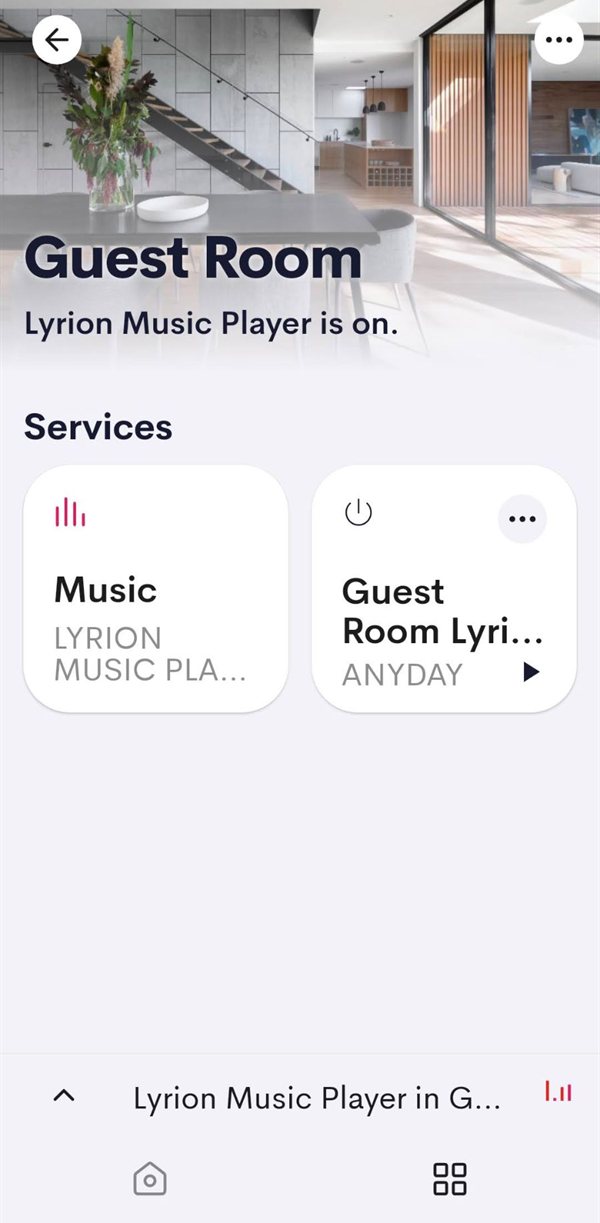
What you get
The suite has four drivers. One connects to your Lyrion server, and the other three give each room its controls. Only the server driver talks to LMS. The room drivers link to a player by its MAC address.
Lyrion Server
Holds the single connection to LMS and keeps the state of every player (power, playback, volume, shuffle, repeat) in one place.
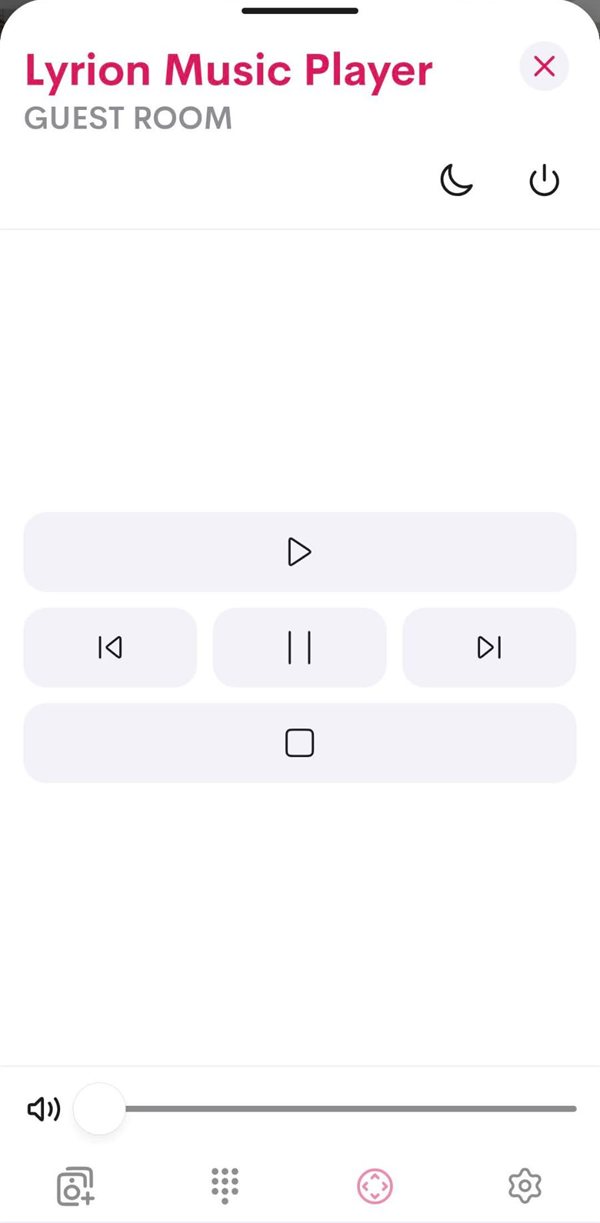
Lyrion Source
A routable audio source with play, pause, stop, next, previous and power, plus digital and analog audio outputs.
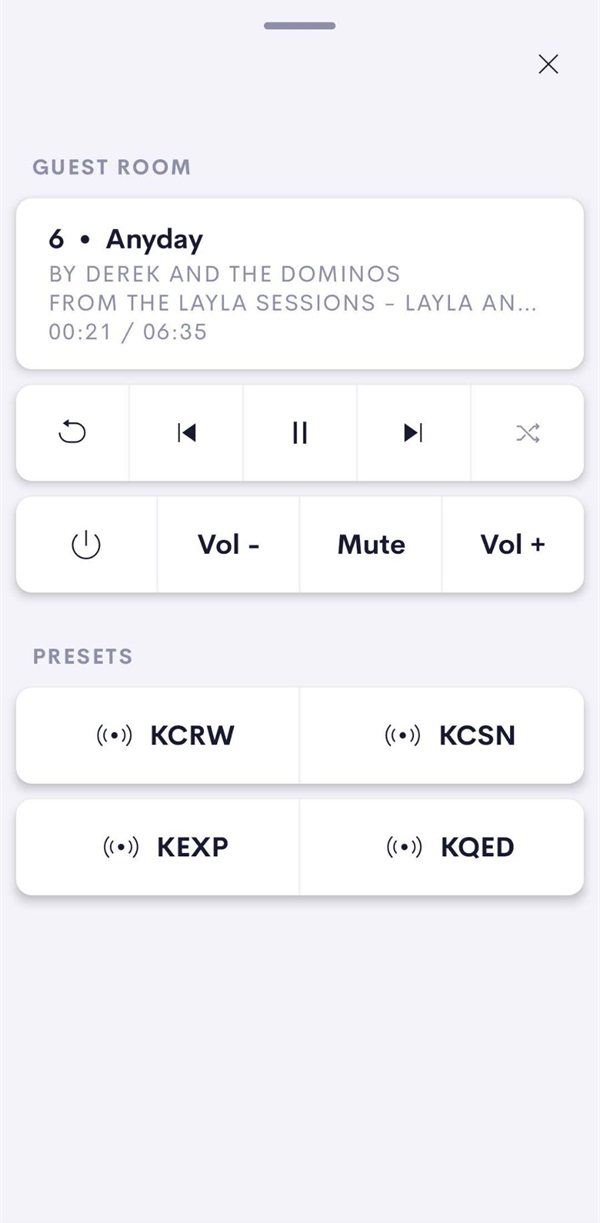
Lyrion Helper
The now-playing screen: title, artist, album, elapsed time, transport, shuffle, repeat, volume and up to four presets.
Lyrion Receiver
A volume endpoint (0–100, step up/down, mute) for players whose volume LMS actually controls.
Features
- Works with Crestron Home's normal room routing: Room On, default sources and preferred routes.
- Now-playing metadata and elapsed/total time for local music and internet radio.
- Up to four presets per room that start a Lyrion playlist or favourite. They also appear in Crestron Home's scene editor as Play Preset 1–4.
- Recovers on its own when the connection drops: backoff up to 60 seconds, then a full refresh of every player on reconnect.
- Logs only what matters (state changes and real errors), so it doesn't wear out the processor's flash.
- MIT licensed, source included.
Install
Requires Crestron driver runtime 25.0000.0033 or later.
- Download the
.pkgfiles from the latest release. - Copy them to
Internal Flash/user/ThirdPartyDrivers/Importon the control system with Crestron Toolbox. - In the Crestron Home Setup app, add the Lyrion Server first. Enter the LMS hostname or IP, HTTP port (default 9000), CLI port (default 9090) and an optional username and password.
- For each room, add a Source and a Helper, and optionally a Receiver, all with the same player MAC address.
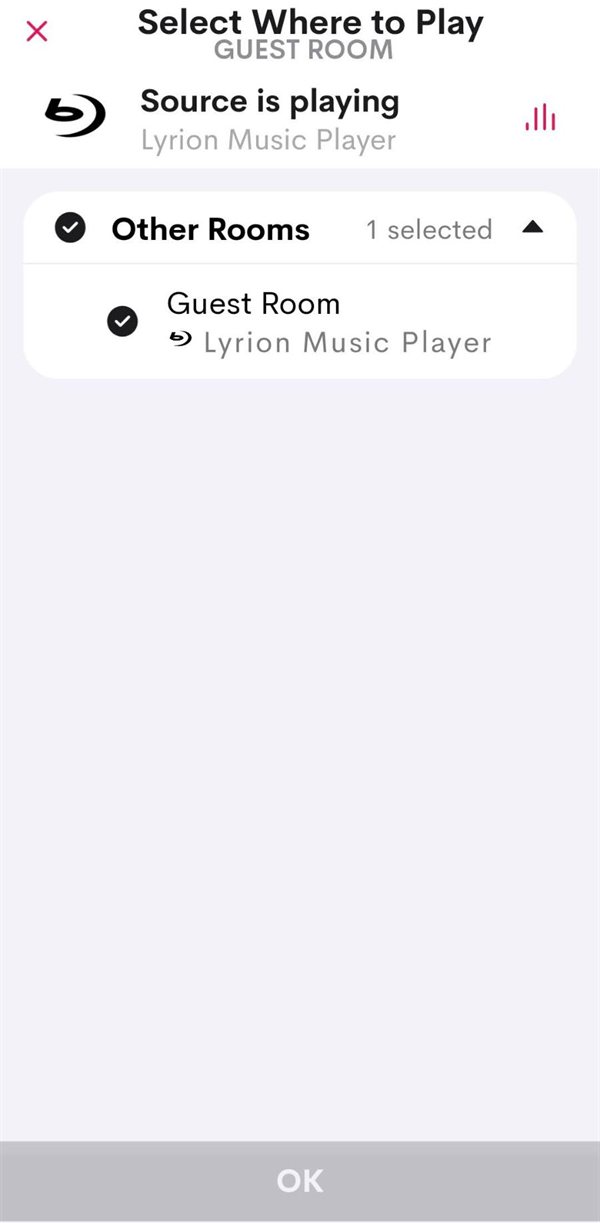
- Route the Source's output to the Receiver (or your own amplifier or AVR) and on to the speakers. Then set the room's Default Source and Preferred Routing. Without a default route, Room On does nothing.
The full walk-through is in BUILD.md.
Presets
Each preset is one field in the Helper's settings, in the form Name|Icon|Command. The command is the
LMS CLI text that goes after the player's MAC address:
KCRW|icBroadcastRegular|favorites playlist play item_id:2The README explains how to find
a favourite's item_id and a saved playlist's id.
FAQ
- Does this work with Logitech Media Server or Squeezebox Server?
- Yes. Lyrion Music Server is the current name of Logitech Media Server, which was previously Squeezebox Server. The drivers use its standard CLI (port 9090).
- Which players are supported?
- Any player LMS can see, such as Squeezebox hardware, piCorePlayer, squeezelite, and other devices through LMS plugins.
- Do I need the Receiver driver?
- Only if LMS should control the room's volume. If the room uses an external amplifier or AVR, or the player is set to fixed volume in LMS, use that device as the audio endpoint instead.
- Does it support browsing the library or the queue?
- No. Presets cover the common case of naming the playlists and stations that belong in a room. Browsing, queue management and player sync groups are out of scope.
- Is it free?
- Yes. It is open source under the MIT license.